Unit 1: Introduction to the Landscape Change Program website
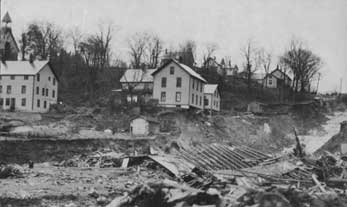
Proctor, Vermont after the 1927 flood that devastated the state of
Vermont when 6 to 9 inches of rain fell on already-saturated ground in
early November. Here in Proctor, the river overflowed its banks and cut
away soil and sediments right down to the rock below. To find where the
river went, look for the dark gray banks of sediment and the bright
white marble on the right side of the photo above. To see this image in
the database,
click here.
Welcome to the first of several modules that will help you get to know
the Landscape Change Program or, for
short, the LCP. For this module, you will be making extensive use of the
LCP (that's Landscape Change Program) web site at http://uvm.edu/
landscape.
Just what is the LCP?
Well, it's a virtual collection of images of Vermont as it was and as
it is. Go to the home page of the web site by clicking here. We
have more than 25,000 images in the collection with more coming on line
every day. Most LCP images are historic and stand alone. More than 10% of
the LCP collection is paired imagery where we have two images of the
same location taken at different times.
Click here to see an example of a modern pair. Click
here to see an example of a much older pair of images. At this
point, please take 20 to 30 minutes and try to click your way through
every link on the LCP site just to see
what's there! Make sure to check out the home page
which is your best way to navigate quickly to the rest of the site.
Also, note the navigation bar at the top of every page.
Want to find out just how many images we have?
That's easy. Go to the search page by clicking
here. Don't do anything else and click on "quick search". The
number of
images you see returned is the number of images we have in the
collection!
How is each image identified?
That's easy. Every image has an LS number. That number is a unique
identifier. To find the "ls number" do a search.
Click on the thumbnail that interests you. Check the web address
showing in your browser. It should look something like... well, OK,
there may be a really long string of numbers but somewheres will be
ls=XXXXX where those Xs stand for numbers.
http://www.uvm.edu/landscape/extensions/zoomify.php?ls=00115
The LS number is at the end. In this case, it's 00115.
You can also find the LS number displayed with the images in many other
places including below thumbnails and to the uppper left of larger images. Just think of it as the catalogue number.
So, what kind of images do we have?
Let's have a look. We have photographs, drawings, paintings, postcards,
stereoviews, airphotos, and lanternslides. Most of the original images
are black and white but a few are hand-colored. Click on the thumbnails
in the table below to view examples of these different types of images.
Can you see that in the table I have identified the LS number for each
image?
OK, let's get started.
Go ahead and open up the landscape change web site. It's at http://uvm.edu/landscape.
I am going to ask you to find a number of parts of the
site.
You may have to spend a couple minutes hunting around but that's part
of the exercise. The site you are working on has been completely
redesigned over the past year by a team of people including a UVM
undergraduate and graduate student (Ben) in computer science
with help from a UVM programming guru (Wes).
Ok, here goes.
First, find the mission of the LCP and read it so you have some idea
what the whole project is about.
Now, try out the quick search
Quick Search is the fastest way to start seeing images.
Pick a topic that interests you and type that word in the search box in
the header bar. Then, click on quick image search and see what
comes up! Try the word bear
and you should be greated by a number of thumbnails. Now click on
one of those thumbnails and you'll learn lots more about the image.
Hey, what are all those little icons around the images and
thumbnails?
Glad that you asked. Those icons have all kinds of useful
functions. Try the magnifier first; it's our favorite. To
try it, click
here. You can double click or use the + tool to zoom in and
see all sorts of detail in the images. Great fun and very useful when
you are making image descriptions (more on that later!). Now, try
all the other icons. If you mouse over them, you'll get a
description of what they can do for you. Make sure to try them
all! You can even register (use the members link in the header)
and make an album of your favorite images.
Next, find the search page (hint, check the header bar)
Try using the map to search for images in Essex County.
Find images from a town you know in Vermont using the map search in the header bar.
Find images from a town you know by typing the town name in quick search
See which images have been viewed most frequently (hint, look in upper
left).
Last, try the advanced search
If you really need to find a specific image, this is where
the action is. The best way to learn advanced search is to do
it. Try lots of combinations and see what you can find for
images. Change date ranges, search in different data fields with
the pull downs. My favorite is the last pull down. Use it
to find all the images that we can locate on a map or all the images
that have been reshot already (the multiple images).
Before you leave the site, check out the learn button on the header
Here, you'll find lots of information for using the Landscape Change
site as an education tool, both for the classroom and for the general
public. Look around and find the modules. Then, take a
total of 15 or 20 minutes to browse through all of the
modules linked to the modules page. Enjoy views of and
information about Shelburne, Oakledge Park and the 1927 flood in
northern Vermont.
If you are having any trouble finding these pages,
click on the proper link below and we'll give you some on-line help.
The
LCP mission
The
Search page
The
Modules Page


